1. Download and open it
Get it from the download page. It's €12 once: buy a license and the key comes by email. There's no free trial, but there's a full refund within 14 days if it isn't for you.
- Mac: open ProfilePorter.dmg in Downloads, drag Profile Porter onto Applications in its window, and open it from there. It lives in the menu bar, not the Dock: look for its icon at the top right.
- Windows: move ProfilePorter.exe to a folder of its own, such as %LOCALAPPDATA%\Programs\Profile Porter, and open it. If Windows says it protected your PC, click More info, then Run anyway. It lives in the tray by the clock; if you don't see it there, look under the ^ arrow.


Click the icon to open the panel; right-click it (Windows: right-click the tray icon) for Settings, pausing and Quit. On the first launch, the setup opens by itself.
2. The setup
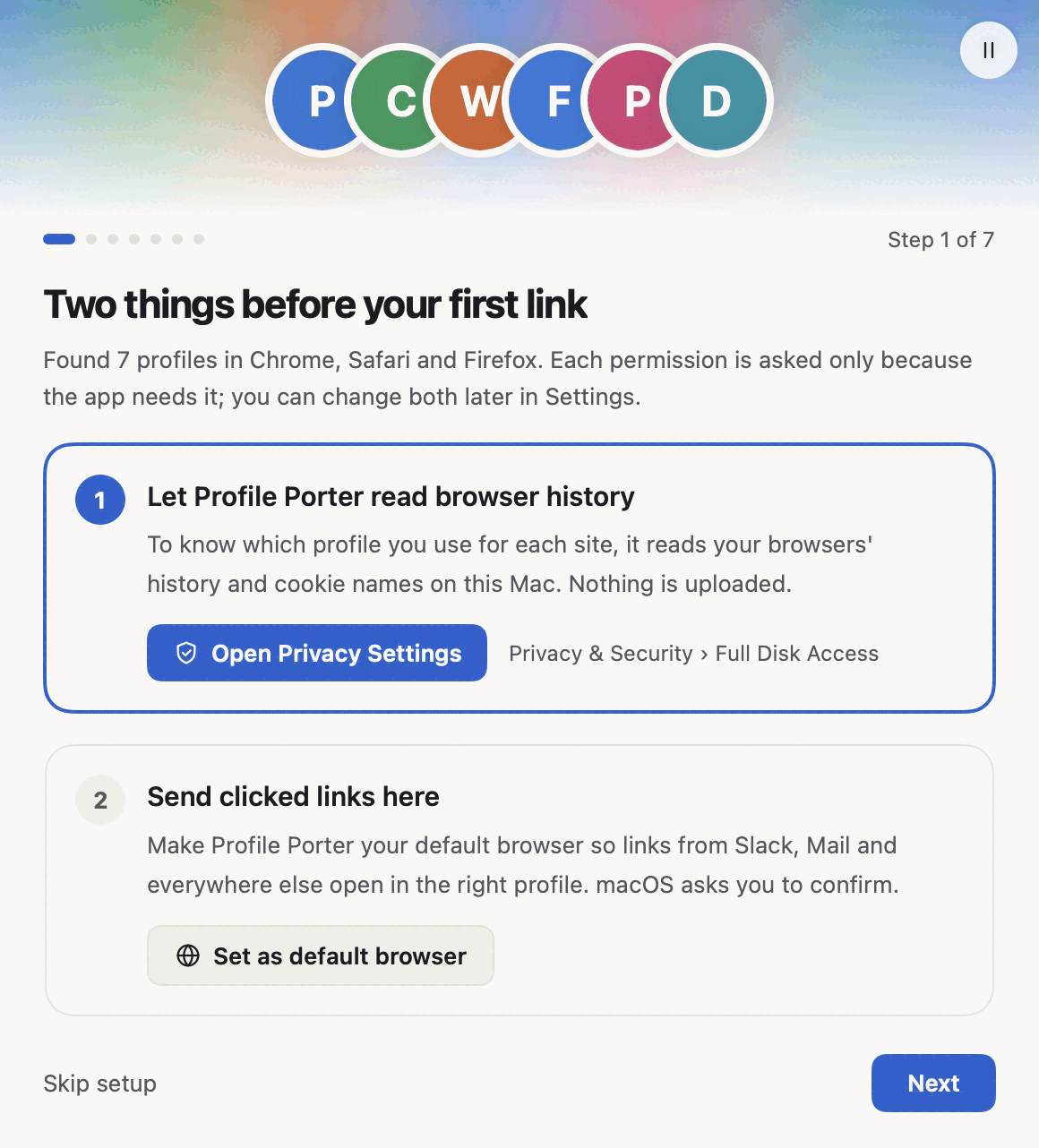
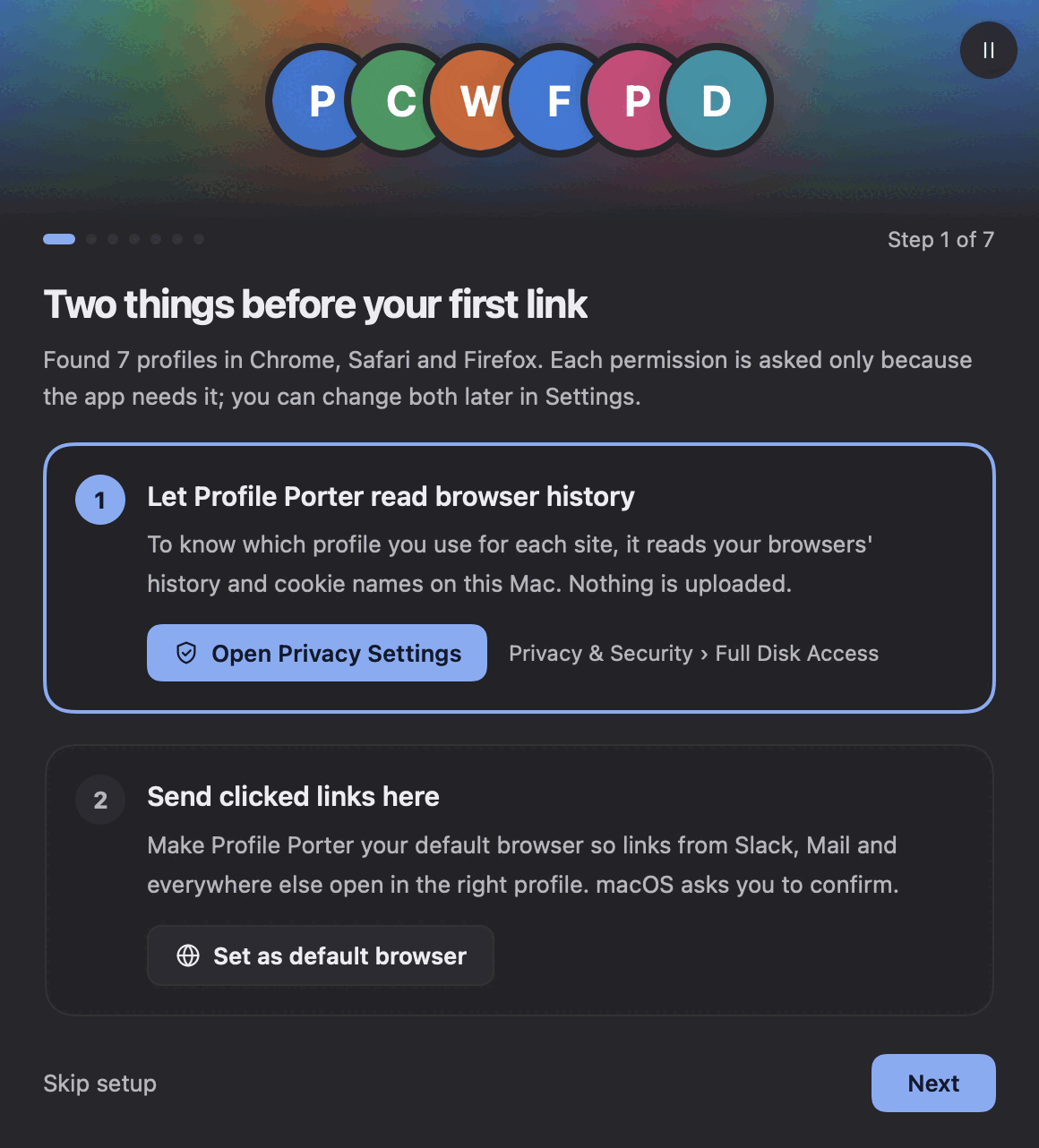
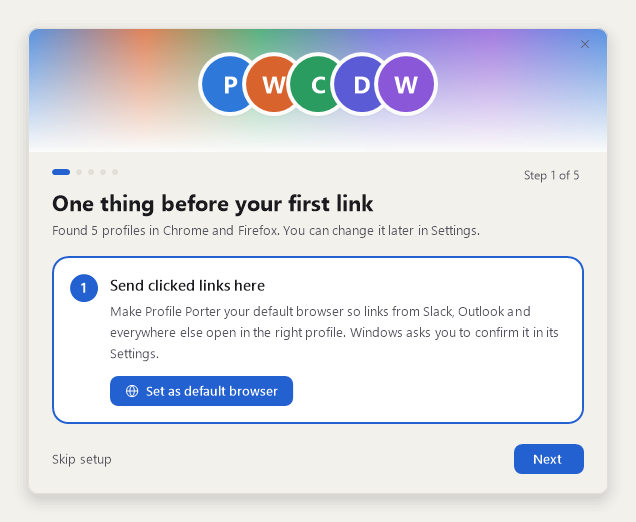
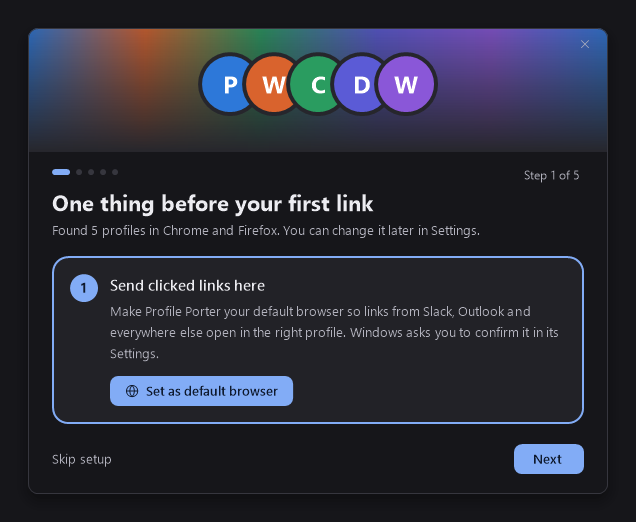
The setup is a short window, one step a page. Every step can wait: Next moves on, Skip setup keeps the defaults, and everything in it is in Settings too. To go through it again later, use Settings › General › Run setup again.
Your license
Paste the key from the email you got after buying and click Activate. No key yet? Buy a License opens the checkout. Until you enter one, Profile Porter doesn't pick profiles: links open in your browser as they are. It's in Settings › License too.
Let it read your browsers (Mac)
To know which profile you use for each site, Profile Porter reads your browsers' history, cookie names and saved-password site names, on your computer. Nothing is uploaded. macOS keeps those folders behind Full Disk Access: click Open Privacy Settings, then turn on Profile Porter under Privacy & Security › Full Disk Access. Windows needs no permission for this, so its setup skips the step.
Make it your default browser
Links you click in Slack, Mail, Outlook and other apps go to your default browser. Make that Profile Porter, and it hands each link on to the right profile. Click Set as default browser.
- Mac: macOS asks whether to use Profile Porter. Click Use “Profile Porter”.
- Windows: Windows opens Settings › Apps › Default apps at Profile Porter. Click Set default.
Skipped it? It's in Settings › Links › Default browser, on both. On Windows the tray icon's menu has Make it the default browser… too.
Your browsers (Mac)
Two optional permissions that make opening a link smoother. Control Chrome lets it bring forward the window that has the link, switch to a tab that's already open, and move a tab later. Accessibility lets it bring a profile's open window forward instead of opening another, and open links in the right Safari profile. Click Allow on each; macOS asks once. Chrome has to be running for macOS to ask about it.
Your choices
Then a few choices, already set to what suits most people:
- Search the pages you visited? Off until you turn it on. With it, the panel finds a page by a word from its title or address, in whichever profile you visited it.
- Open the panel: the shortcut, ⌃⌥Space (Windows: Ctrl+Alt+Space). Click it and press another to change it.
- Profile order in the panel, Colours, and Launch at login (Windows: Start with Windows).
- Remove tracking from links (on), Expand short links (off) and Switch to an open tab (off). On a Mac, also Show your sites in Spotlight.
The last page, All set, lists what's done and what isn't yet. Click Start; the panel opens. Open Settings goes to Settings instead.
3. Your first link
Click a link in Slack, Mail or any other app. Profile Porter picks the profile where you use that site: the one signed in to it, the one you visit it in most and most recently, the one with its password saved. The link opens there, in that profile's window if it has one open.
A notice tells you where it went and why. On a Mac it shows at the top right, under the menu bar; on Windows, by the tray. It goes away by itself after a few seconds, and stays while your pointer is on it.
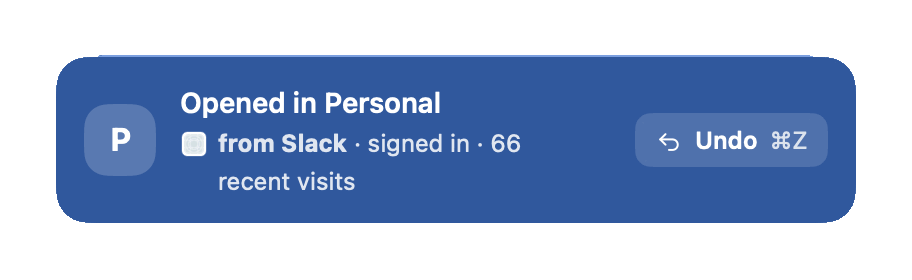
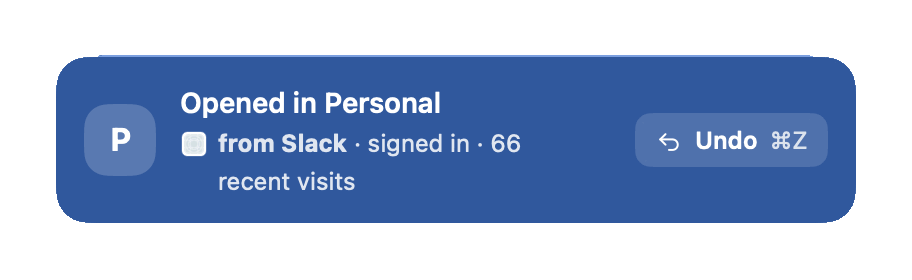
If it got one wrong, click Undo on the notice; see step 7. To open links without any of this for a while, click Pause in the panel's footer, or right-click the icon and turn routing off. Links then open in your browser as they are.
4. The panel
The panel is how you open a site in a profile yourself. Press ⌃⌥Space (Windows: Ctrl+Alt+Space) from any app, or click the icon in the menu bar or tray.
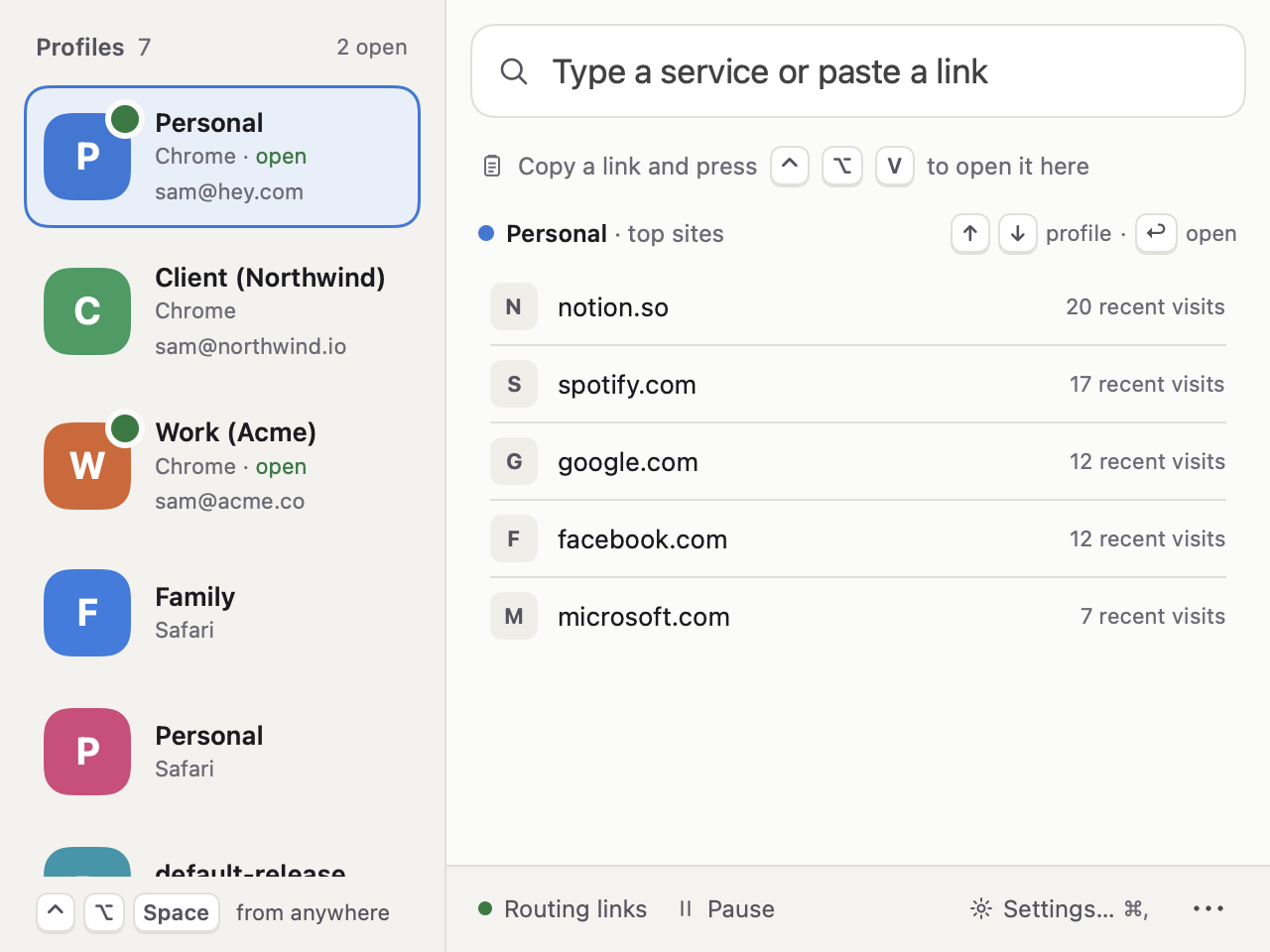
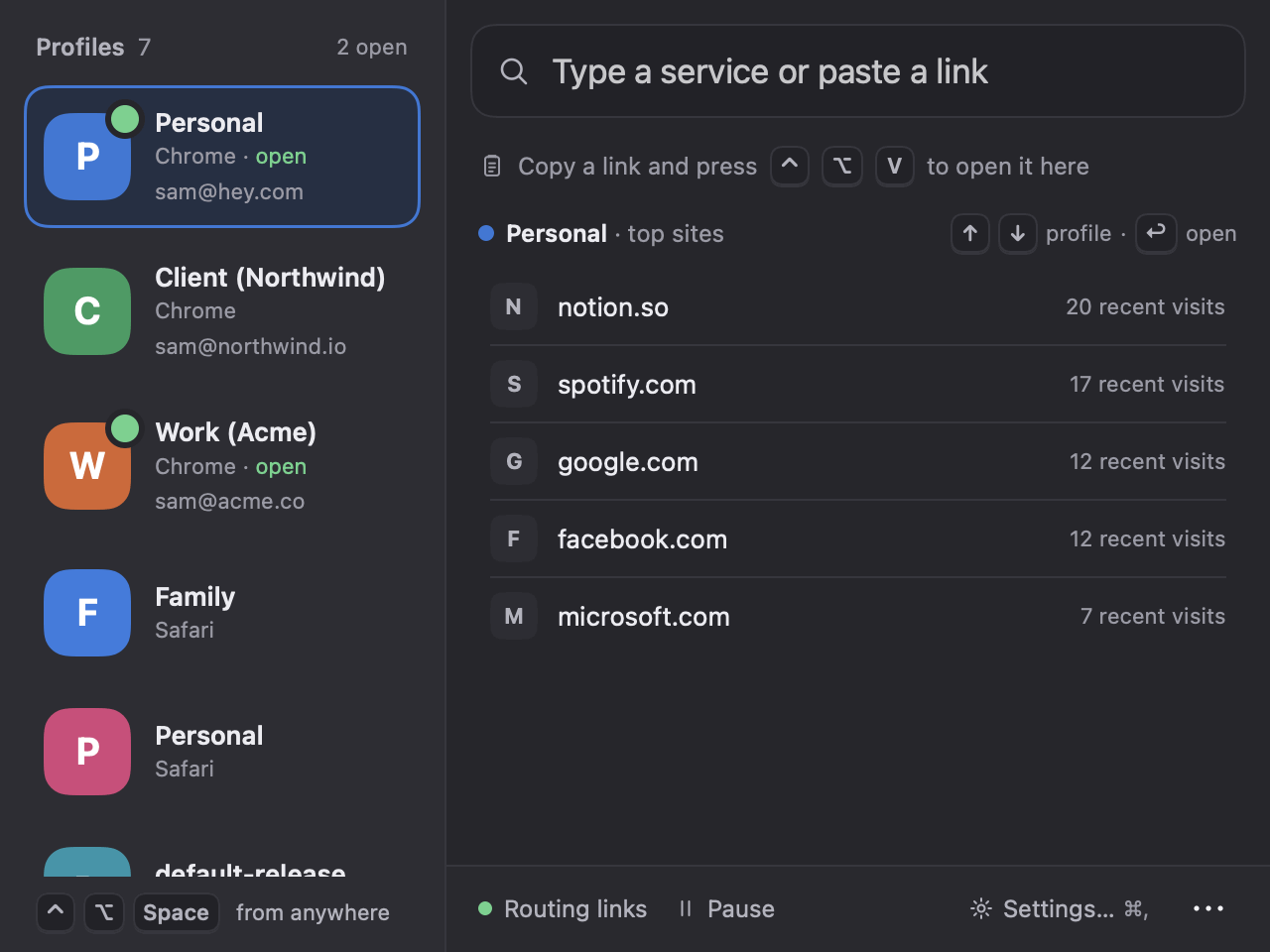
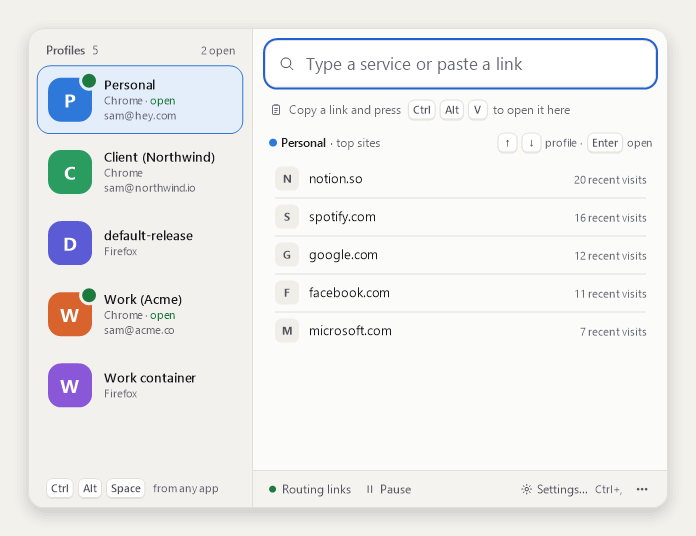
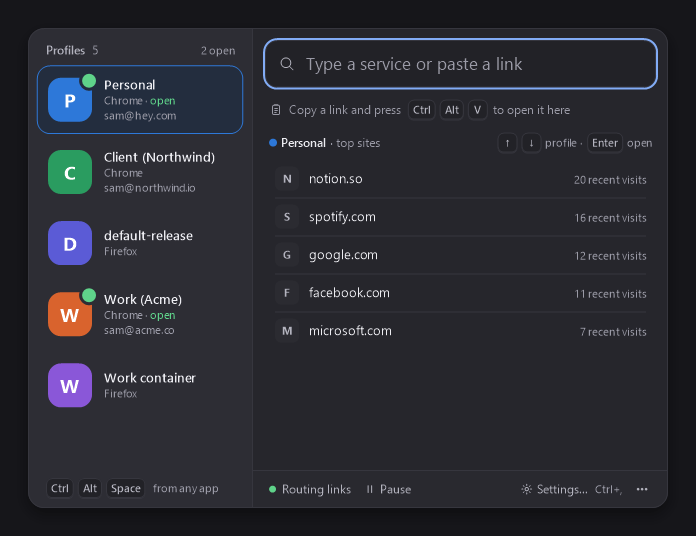
- Open a profile: pick it on the left with the mouse or ↑ ↓, then click one of its top sites, or press Return (Windows: Enter) for a new window of it. A green dot means it has a window open.
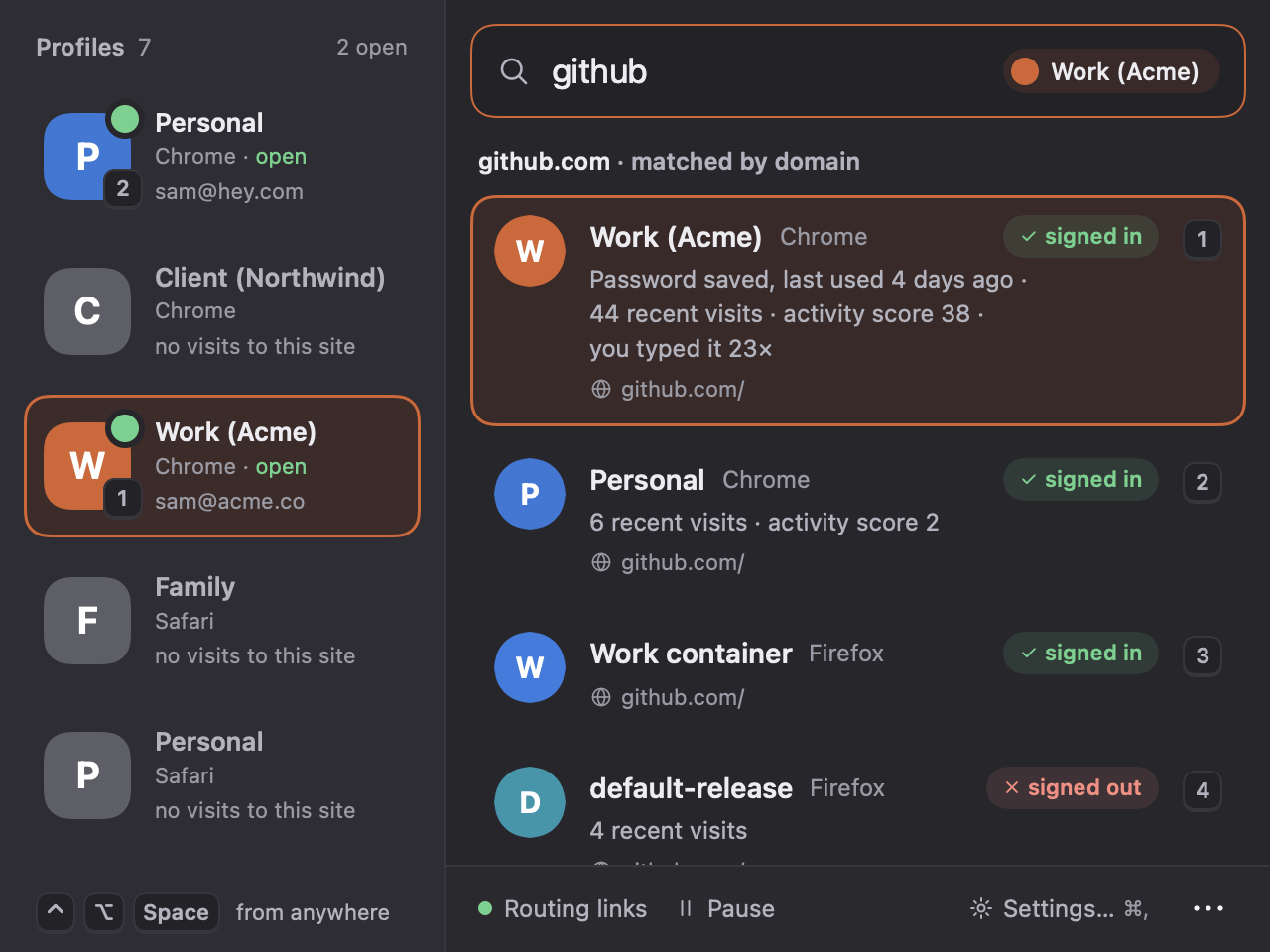
- Search: type a service, like github. Every profile that uses it is listed, best first, with why: signed in, how often you visit, whether you typed it. ↑ ↓ to choose, Return (Enter) to open, Esc to go back. Clicking a profile on the left opens it there too.
- Paste a link into the same field to see which profile it would open in, and open it in any of them.
- A copied link: copy a link anywhere and press ⌃⌥V (Windows: Ctrl+Alt+V). It opens in the right profile like a clicked one, and asks only when unsure.
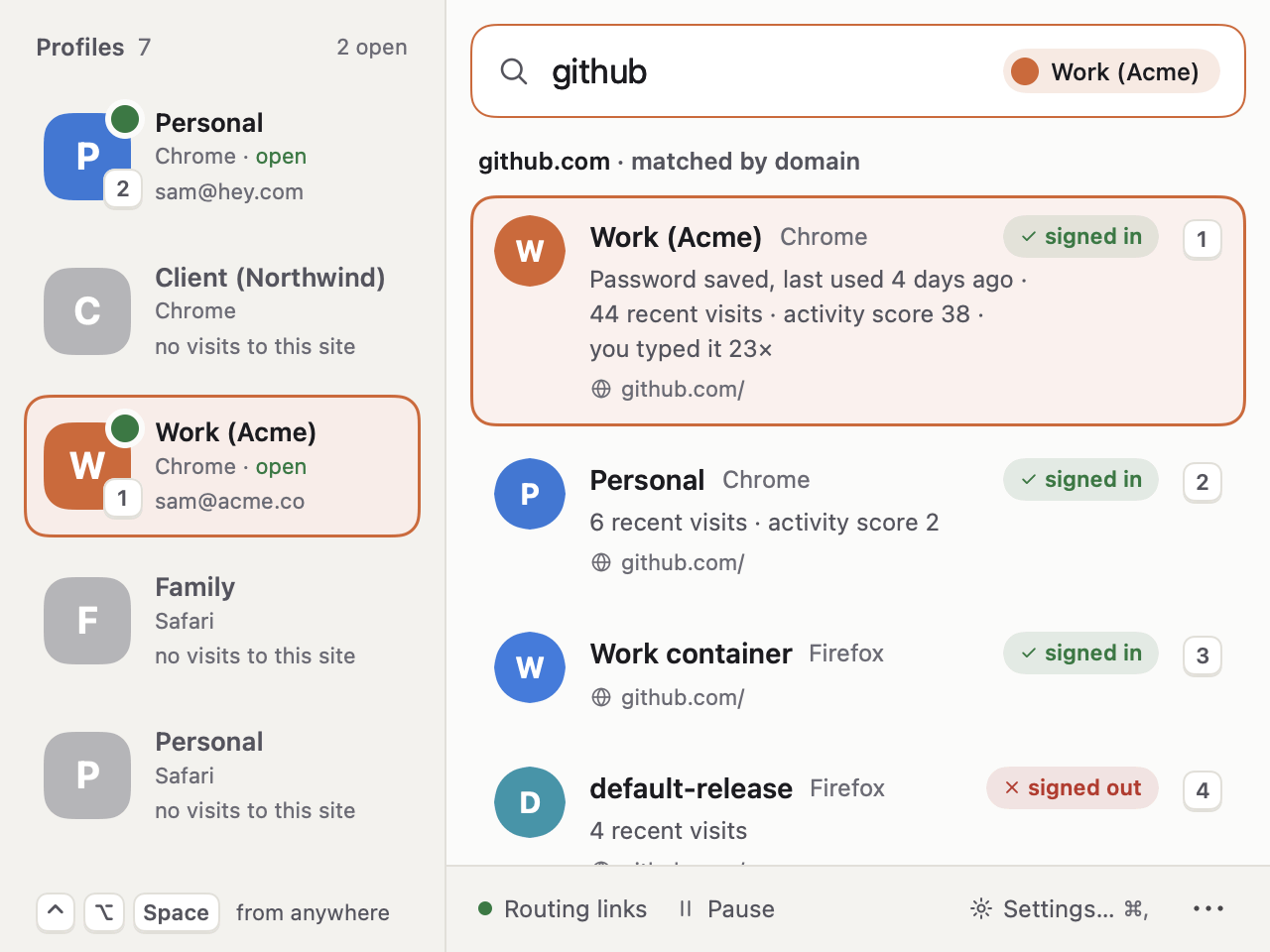
Esc closes the panel. Its footer has Settings… and the Pause switch.
5. When it asks
When two profiles are about even for a site, or it has nothing to go on, Profile Porter asks rather than guess. The picker opens with the link at the top, a line on why it's asking, and a card for each profile, best first.
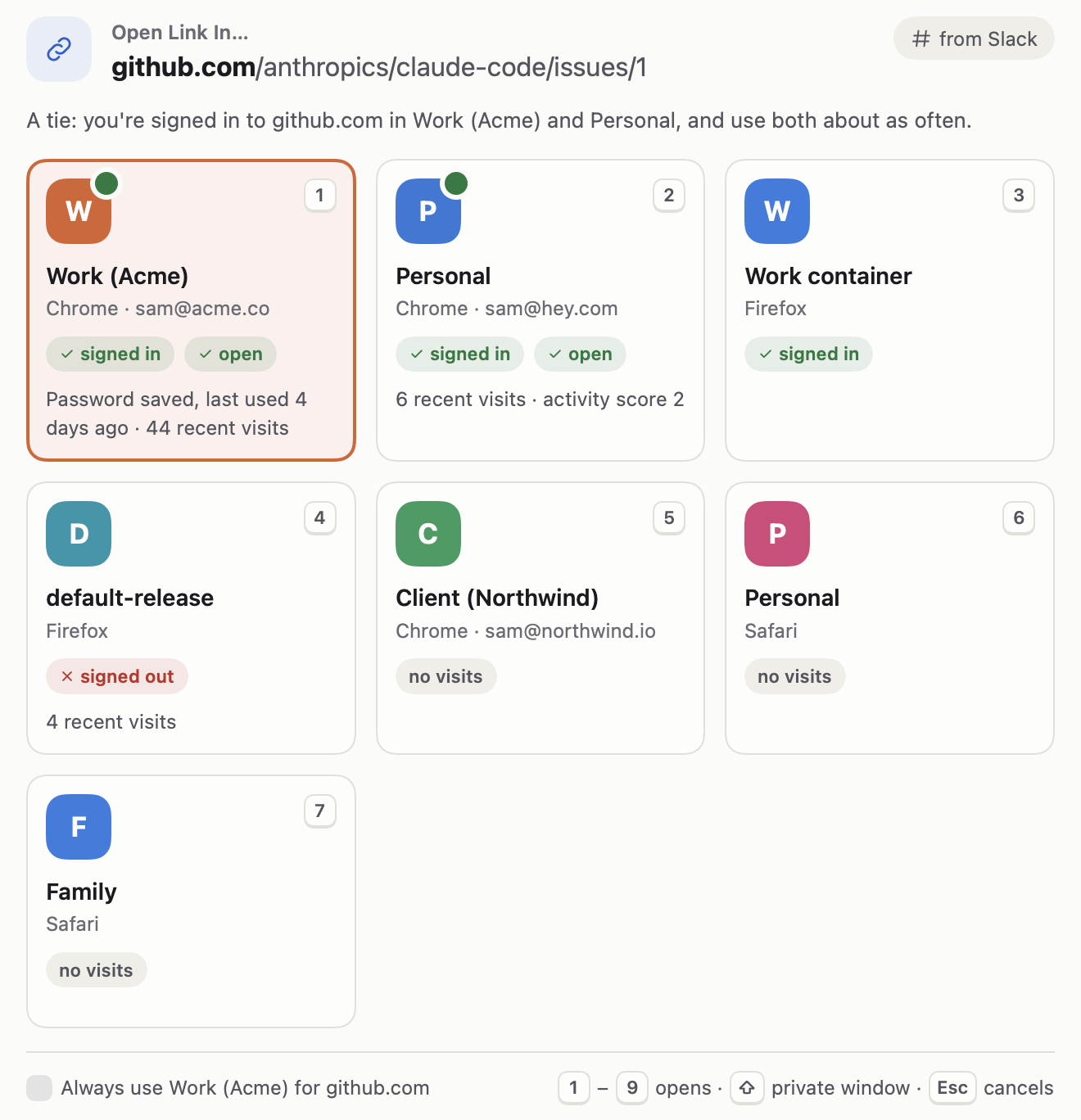
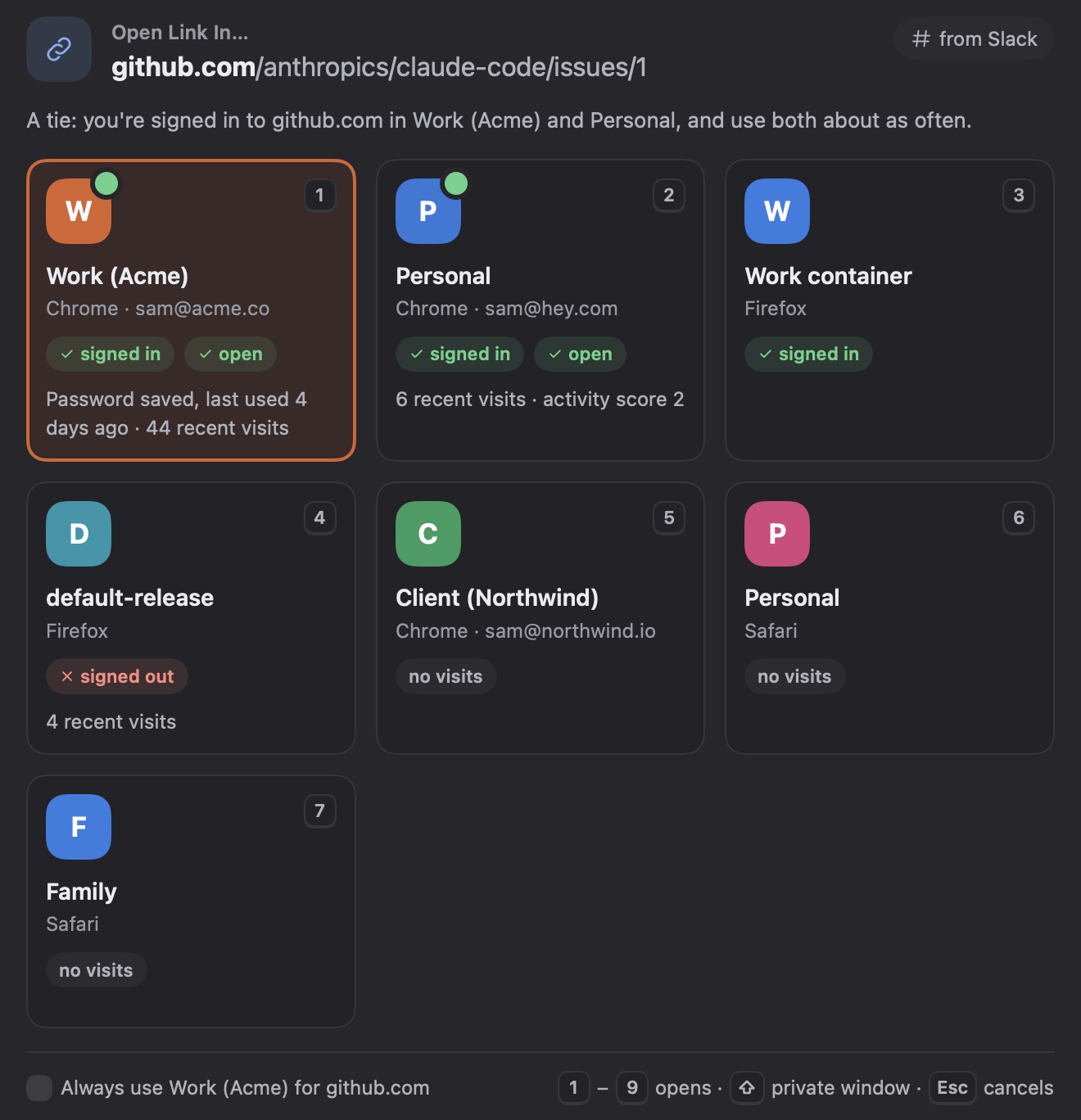
- Press a number, 1 to 9, to open the link in that card's profile. Or click a card.
- Arrow keys move the highlight; Return (Windows: Enter) opens it.
- Hold ⇧ (Shift) while you pick to open it in a private window.
- Esc cancels: the link doesn't open.
You can ask for the picker yourself: hold ⇧ (Shift) while you click a link in another app, and it asks even when it's sure or a rule decides.
6. Teach it your sites
It gets better as you use it. Each profile you pick by hand counts for that site, and each Undo counts against. For a site that should always go to one profile, make a rule:
- In the picker: tick Always use … for the site before you pick (Windows: Alt+A ticks it). Links to that site then open straight in the profile you pick.
- In Settings › Sites: type a site, choose a profile and click Add Rule. A rule beats the ranking for every link to that site.
- By app: under Apps in the same tab, send every link from one app to one profile, like “links from Slack go to Work”. A site's own rule comes first.
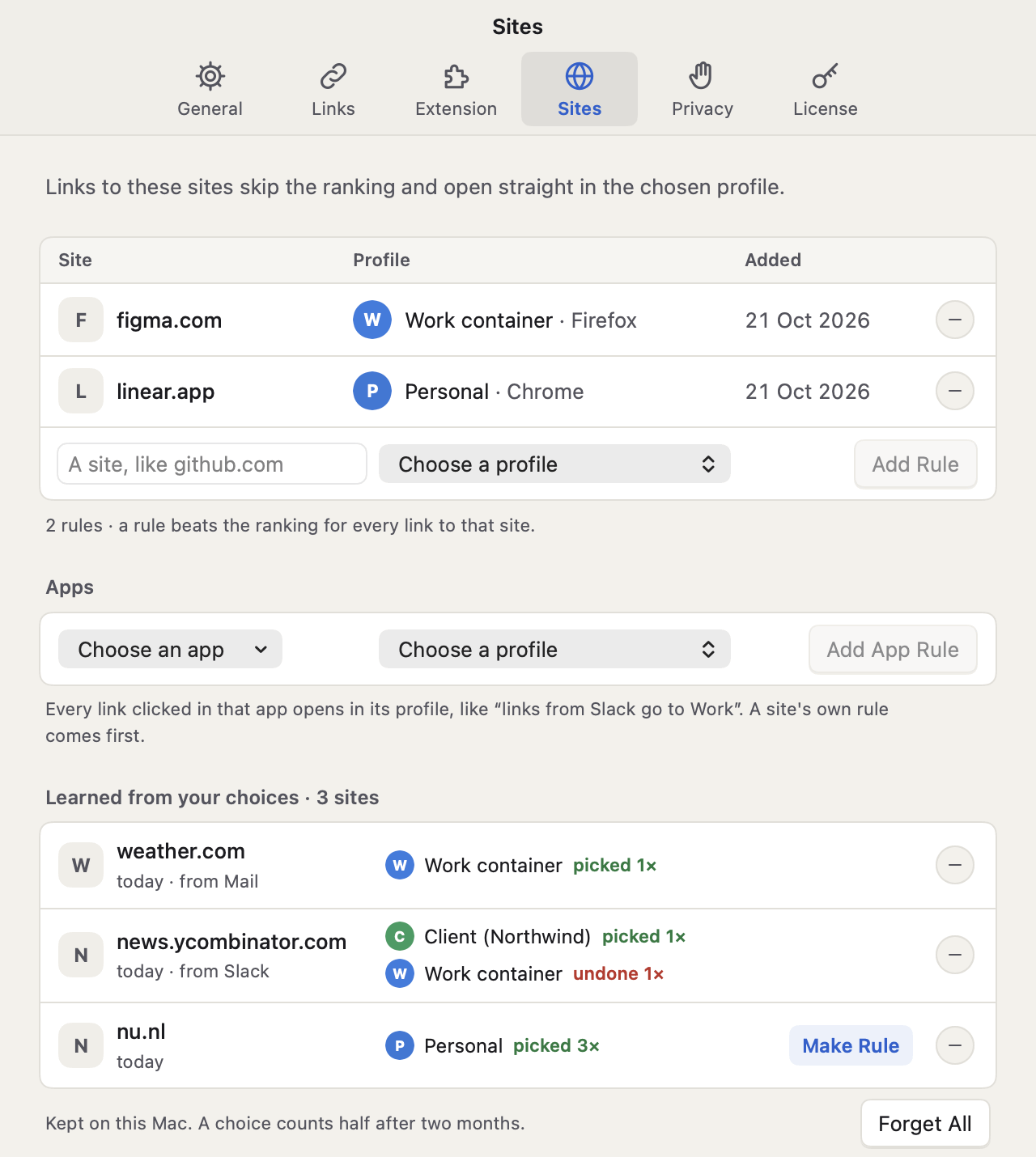
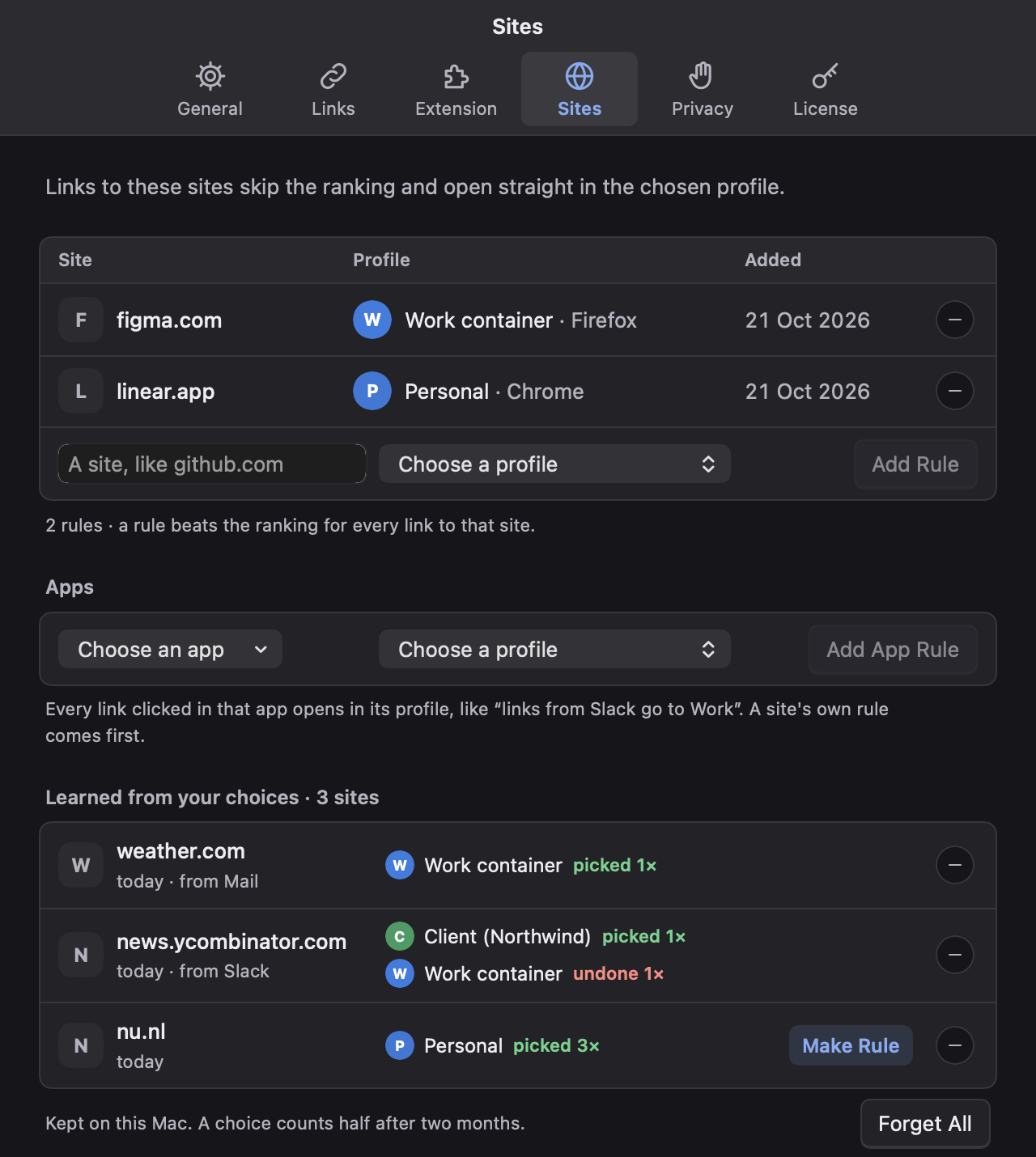
Learned from your choices shows what your picks taught it, site by site. A site you keep picking the same profile for gets Make Rule. The – button forgets one site, Forget All forgets them all. Further down, Export… and Import… carry your rules and picks to another Mac or PC.
7. Undo, or move a tab
Right after a link opens
Click Undo on the notice, or press ⌘Z (Windows: Ctrl+Z) while you're still in that browser. The picker asks again, with the profile it chose listed last. Pick the right one: the link opens there, the tab it opened first closes, and that profile counts against the site next time. Esc keeps everything as it was.
Where the tab it opened can't be closed for you, the button says Other Profile instead (Windows: Other profile), and the first tab stays. On a Mac that's any browser other than Chrome and other Chromium browsers. On Windows that's every browser.
Later: move the tab in front (Mac)
Already reading the page and only now see it's the wrong profile? Press ⌃⌥Z. The picker asks where the tab in front should go; once you pick, it opens there and the old tab closes. Esc keeps it where it is.
It works in Chrome and other Chromium browsers. The first time, macOS asks to let Profile Porter control Chrome: click Allow.
Both shortcuts can be changed in Settings › Links.
8. Desktop apps
Some links are better in an app than in a tab, like a Zoom meeting link. When a site you use says its app opens a link like that one, and the app is on your computer, the link goes straight to the app. Other pages of the site, like its sign-in page, still open in a browser profile.
When a link goes to an app, the notice says so and offers Use the browser instead. All of it is in Settings › Links › Desktop apps, with a switch for each app. With Look up apps for your sites on, it finds them by reading each site's own list of apps.
9. Everyday tips
| To | Mac | Windows |
|---|---|---|
| Open the panel | ⌃⌥Space | Ctrl+Alt+Space |
| Open a copied link | ⌃⌥V | Ctrl+Alt+V |
| Undo while the notice shows | ⌘Z | Ctrl+Z |
| Move the tab in front to another profile | ⌃⌥Z | – |
| Pick a profile in the picker | 1–9 | 1–9 |
| Open it in a private window | ⇧ while picking | Shift while picking |
| Be asked for this link | ⇧ while clicking it | Shift while clicking it |
| Settings, from the panel | ⌘, | Ctrl+, |
- Pause in the panel's footer, or turn routing off from the icon's menu, when you want links to open in your browser as they are.
- Switch to an open tab (Settings › Links): if the link is already open in that profile, it goes to that tab instead of opening another. Chrome and other Chromium browsers.
- Search the pages you visited (Settings › General): find “that doc” or “that show” by a word from its title, whichever profile it was in.
- Remove tracking from links is on: parameters like utm_source are dropped before a link opens. Expand short links finds where bit.ly and t.co links go, to pick the profile for that site.
- Spotlight (Mac): turn on Show your sites in Spotlight in Settings › Privacy, then type a site or a profile in Spotlight to open it in the right profile.
- A new profile shows up by itself within a minute of the browser saving it.
- A shortcut clashes with another app? Settings says so next to it. Pick another in Settings › General (the panel) or Settings › Links (the others).
Where to go next
- Docs: every feature and setting, on a Mac and on Windows.
- Help: links that skip Profile Porter, a link in the wrong profile, Full Disk Access, shortcuts and licenses.
- How-tos: open links in a specific Chrome profile, Slack links in the wrong profile, a different browser for each website.
- Privacy: what it reads on your computer, and the few things that go online.
- Still stuck? Email support@profileporter.com, or use Settings › License › Contact support.